
Beehive: Putting AI Agents to Work Without Leaving the Couch

Local AI agent has been working unattended for weeks now. This blog has been unattended since 2020.

Hello again! It has been a while. My previous post, about building a Xamarin iOS app in the cloud, dates from December 2020. Before that I managed 5 posts in 2011, 3 in 2012, 3 in 2014, 6 in 2017, 3 in 2018, one in 2019 and one in 2020. Statistically, my posting cadence is best described as “best described as ‘TODO: write post'”. Xamarin has since been retired, and the cloud built that app without me.

Don’t mistake the silence for idleness: I have been very busy, just not very vocal about it here. This post is about one of the things I have been working on: Beehive.

The itch

I pay for GitHub Copilot, and its premium requests are metered: use more AI than your plan allows and you buy extra credits. Meanwhile, I have a desktop at home (64 GB RAM and an RTX 4060 Ti) that is good enough to run local models through Ollama, and that sits idle most of the day.

Plenty of programming tasks are not time-pressured: “add this endpoint”, “fix that test”, “write the docs”. They can run in the background while I work on something else, or overnight while I sleep. Local models are free to use, so these tasks cost no extra credits, and I get to use a lot more AI in a month for the same money. (I have not calculated the power consumption yet; the savings may be smaller than I like to think.)

What I wanted was this:

Open a web page on my laptop, pick a repository, pick a model, type a task, and go do something else. When I come back, there is a branch waiting for me with the result.

That is Beehive: a small local-network tool that hands tasks to GitHub Copilot CLI, backed by local Ollama models, against git repositories that are checked out on the machine.

The rules of the hive

A few design decisions shape everything else:

  1. Agents never touch my working copy. Every session gets its own git worktree, so the agent can make a mess without me noticing, or caring.
  2. Always a branch, always pushed. Every task ends up on an agent/{task} branch that is committed and pushed. Nothing lands on main unreviewed; the pull request is where I come in.
  3. Everything is remembered. Each session is stored: the prompt, the whole conversation, tool calls, the “thoughts” of the model, the files it changed, and the commits it made. A session can be resumed later with a follow-up prompt, continuing on the same branch.
  4. One at a time. There is only one GPU, so a queue runs one session at a time. Parallelism is a problem for future me.
  5. No accounts, no auth. Beehive never handles logins; it assumes Copilot CLI is already signed in. It is meant for my trusted home network only. (Yes, I wrote that in the docs in bold. Please do not put it on the internet.)

The architecture
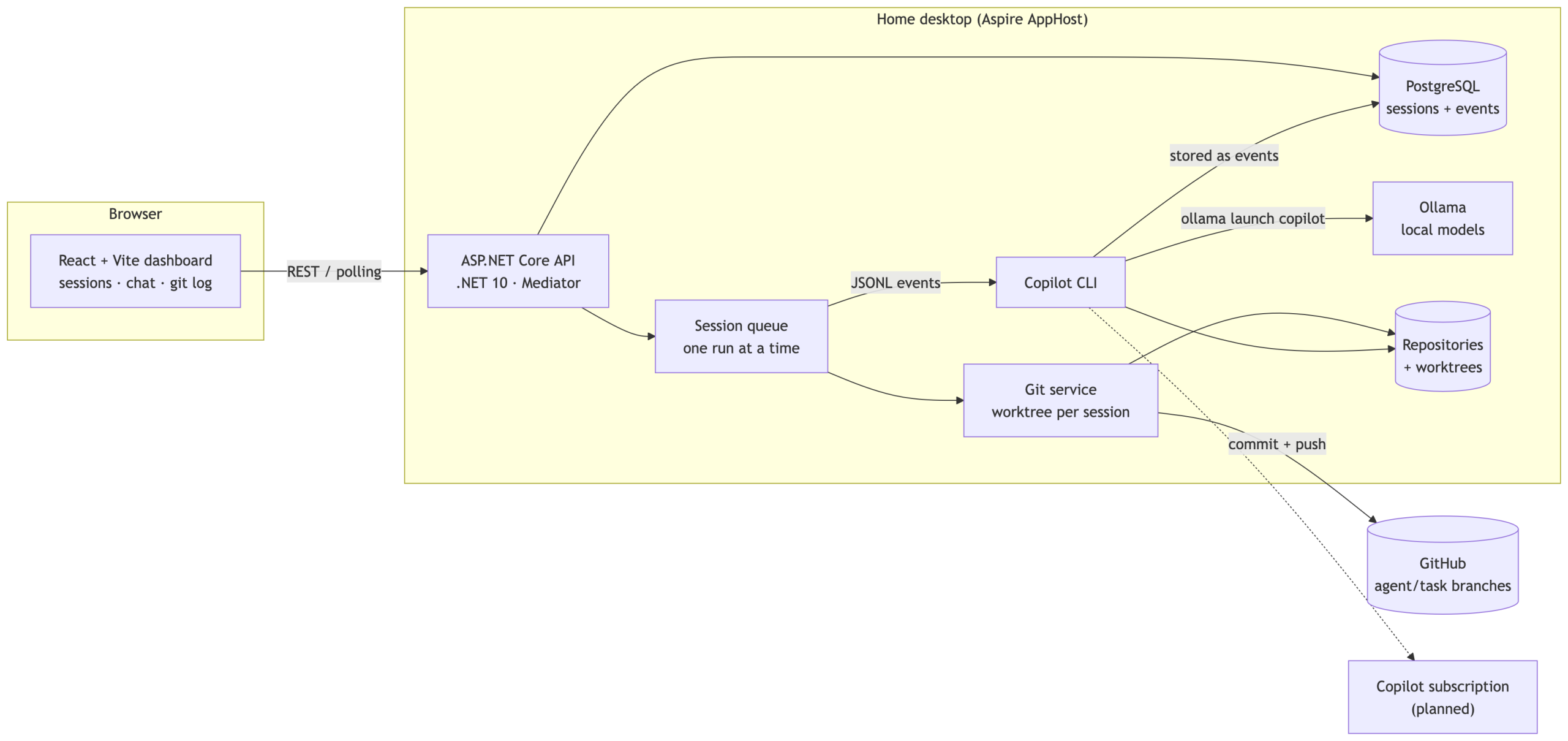
Software architecture of Beehive

The whole thing is started by a single command: a dotNET Aspire AppHost spins up the API, the PostgreSQL container (with a persistent volume, lesson learned the hard way) and the Vite frontend, and wires the URLs together.

The life of a task

  1. The dashboard lists repositories (git repos under one configured root folder), models (straight from Ollama) and agents (custom *.agent.md files in the repo or my Copilot home, plus the built-in default).
  2. I type a task and hit Run. The API stores a Pending session and puts it on the queue.
  3. The runner creates a worktree and a branch named agent/{task-slug}, then starts Copilot CLI inside it with --output-format json.
  4. The JSONL events stream back and are stored as they come in. The frontend polls and shows the conversation live, with thoughts collapsed, tool calls as cards, and a Stop button if the model starts going in circles (it does, sometimes; small models love repeating the same thought twenty times).
  5. When Copilot finishes, everything is committed and pushed. The session view then shows the files changed with diffs, and a git log for the branch.
  6. Not quite right? Type a follow-up and the same session is resumed in the same branch.

Built the way I would build anything

The project is a fairly strict .NET 10 codebase: controllers with one endpoint each, in REPR-style feature folders (POST /api/<area>/<feature>), Mediator (the source-generated one, not MediatR), an interface for every service, one IEntityTypeConfiguration<T> per EF Core entity, and tests with NUnit, Moq and AwesomeAssertions, all written in Arrange-Act-Assert style.

The fun part is that these conventions are written down in an AGENTS.md file, and a good chunk of Beehive was itself built by an AI agent following those rules. Every task also leaves a devlog entry (prompt, plan, changes), so there is a diary of the project, which is more than my blog can say. The docs folder holds the ideas list, the implementation plan, and a plan per larger feature, and I review each plan before anything is implemented.

What works today

  • Repository, model and agent discovery
  • Running Copilot CLI on a local Ollama model, in an isolated worktree, always ending on a pushed agent/{task} branch
  • Persistent sessions with the full conversation, tool calls, thoughts, changed files, diffs and the branch’s git log
  • Resume and stop for sessions
  • A GitHub-flavored dashboard with resizable panels, markdown rendering, a backend health indicator and an Update & restart button (hidden behind a cog) that does a git pull and restarts the whole app, so I can ship Beehive improvements to the machine under the desk without walking over to it

What is next

  • Telemetry: Copilot CLI can export OpenTelemetry data. I want tokens, tool calls, durations and lines changed per session, perhaps with Prometheus for long-term trends. I already researched this, and the answer is “yes, but it is a complement to the raw JSONL, not a replacement”.
  • Changing model and agent when resuming a session.
  • Custom models from Hugging Face, so I’m not limited to what is in the Ollama library.
  • Parallel sessions, once I figure out what to do with a single GPU.

Why bother?

Mostly because I wanted to see how far you can get when the agent does the typing and I do the thinking, reviewing and deciding. Beehive turns that into a workflow: small tasks go in, branches come out, and I stay in charge of what actually gets merged. Also, a name like Beehive makes the whole thing sound far busier than it is.

I will try to write more about it as it grows. Given my track record, you may want to set a reminder for 2032.
Build Xamarin iOS App in the Cloud

While developing an app using Xamarin, you want it to work on your iPhone but you don’t own a Mac. At work we have a old outdated iMac which is slow and remote-desktop is horrible. So how do you build an iOS Xamarin app in the cloud? Using Azure DevOps.

So how do we tackle this?

Note: In this tutorial I’m making an iOS Disitribution App as an Apple Enterprise Developer. However the steps are similar if you intend on publishing your app to the App-Store, except you have to manually upload it.

Requirements

For this to work, you need the following already setup;

  • An Apple developer enterprise account with a iOS Distribution profile and have registered your app.

1. Configure your Library

We don’t want our secrets inside our git so we will store them in Azure DevOps, as we do need them during the build proces. So first go to Library in Azure Devops under Pipelines. Then select the tab Secure Files, then upload the files below. (I used that old Mac from work to export my certificate to a p12 format, with a password. But you can also do that using command-line tools; see stackoverflow.)

  • Your iOS Distribution profile: a p12 certificate (from the Apple developer portal).
  • Your app’s mobile-provision profile (from the Apple developer).

Then go back to the tab Variable Groups and create a Variable Group with your secrets; (Note: you can rename your file names in DevOps.)

  • DistributionCertificateFileName: File name of your p12 certificate.
  • DistributionCertificatePassword: Password for the p12 certificate.
  • ProvisioningProfileFileName: File name of your mobile-provision profile of your app.

2. Change your Pipeline script

Next we will setup our pipeline. Most important; we want to use a Mac to do this so set the vmImage to macos-latest. Next we define a parameter to either build Release or Debug, by default we build a Release. Of course you could also add triggers, for that see the manual. I do this to be able to manually create a Debug build (which has some different settings from my Release build).

pool:
  vmImage: macos-latest

parameters:
- name: buildConfiguration
  displayName: Build Configuration
  type: string
  default: Release
  values:
  - Release
  - Debug

As variables we want to add our created VariableGroup from step 1. And we also add a ProjectName variable. This is the name of your application, we use it to find the correct paths to search. We can do this because most Xamarin projects have the same project structure. In the example we below we thus use ExampleProject.

  • ExampleProject
    • ExampleProject
      • ExampleProject.csproj
    • ExampleProject.iOS
      • ExampleProject.iOS.csproj
  • Solution.sln

Replace the <<VariableGroupName>> with the name you chose in step 1.

variables:
- group: <<VariableGroupName>>
- name: ProjectName
  value: <<ProjectName>>

Install the iOS Distribution certificate. This uses the variables from the variable group and downloads the certificate from the secure files.

- task: InstallAppleCertificate@2
  displayName: Install iOS Distribution Certificate
  inputs:
   certSecureFile: '$(DistributionCertificateFileName)'
   certPwd: '$(DistributionCertificatePassword)'
   keychain: 'temp'
   deleteCert: true

Install the app’s provisioning profile, this works similar.

- task: InstallAppleProvisioningProfile@1
  displayName: Install $(ProjectName) Provisioning Profile
  inputs:
   provisioningProfileLocation: 'secureFiles'
   provProfileSecureFile: '$(ProvisioningProfileFileName)'
   removeProfile: true

Build your iOS app using the Xamarin tasks. This uses our build-configuration parameter. And uses the generated Environment Variables (in blue) by the previous tasks.

- task: XamariniOS@2
  displayName: Build iOS
  inputs:
    solutionFile: '**/*.sln'
    configuration: '${{ parameters.buildConfiguration }}''
    clean: true
    buildForSimulator: false
    packageApp: true
    signingIdentity: '$(APPLE_CERTIFICATE_SIGNING_IDENTITY)'
    signingProvisioningProfileID: '$(APPLE_PROV_PROFILE_UUID)'

Now we have build our iOS app and generated an IPA file.

3. Upload your App

We could upload the app as a Build Artifact, but then we would have to download it and manually distribute it. There is however an online-service for enterprise app distribution called Diawi. To use their REST-api to upload an account is required.

Add extra variables to your variable group (from step 1);

  • DiawiAccessToken: generate your own access-token.
  • DiawiCallbackEmail: the receiver of an email with the Diawi-link.

First we copy the artifacts to the staging directory; (This is not required, but makes somes paths easier in the following step and can enable you to still store your artifacts in DevOps.)

- task: CopyFiles@2
  displayName: Copy IPA
  inputs:
    SourceFolder: '$(ProjectName)/$(ProjectName).iOS'
    Contents: |
      bin/iPhone/${{ parameters.buildConfiguration }}/*.ipa
      bin/iPhone/${{ parameters.buildConfiguration }}/*.plist
    TargetFolder: '$(build.ArtifactStagingDirectory)/${{ parameters.buildConfiguration }}'
    flattenFolders: true

Then we run a script (bash on macos) using curl to upload our IPA file, using the REST-api of Diawi using our variables from the variable group from step 1.

- script: >-
    curl https://upload.diawi.com/
     -F token='$(DiawiAccessToken)'
     -F file=@$(build.ArtifactStagingDirectory)/${{ parameters.buildConfiguration }}/$(ProjectName).iOS.ipa
     -F wall_of_apps=1
     -F callback_emails='$(DiawiCallbackEmail)'
  displayName: Upload to Diawi

You can add more parameters, see the API description (you need an account to access it).

Conclusion

As you can see the proces is quite easy, with existing tasks from the Azure DevOps library.

Allium available on NuGet

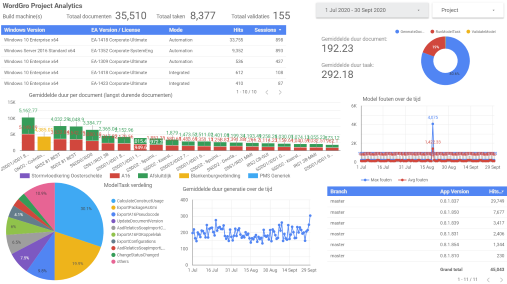
My package Allium has been made available on NuGet. At my work we use it internally to track usage and runtime of a tool that generates documents. Together with Google DataStudio I’ve created several Dashboards to monitor it. The latest version is v1.2.3. For more check out the source on GitHub.

For credits see my original post.

Things I Mean to Know

I regularly listen to podcasts in the car. One of the podcasts I follow is This American Life. Sometime ago they put out an episode titled “Things I Mean to Know“. This triggered me into creating a list for myself. Not necessarily to blog about it, but to have a grand feeling of what technologies I can say I do know something about and what not.

Funnily the podcast goes into quite the opposite opinion; that such lists are just a burden. During my work I regularly speak to customers, partners and other technical people. Usually new technologies come up and I want to be able to have at least a general idea what it is about!

So here a broad list of Things I Mean to know; mostly pulled from Gartner. (story behind)

  • Data science and big data
  • Quantum computing
  • Digital twin
  • Serverless, edge computing and IoT platforms
  • Volumetric displays (Holograms)
  • Deep learning, machine learning

This post is a reminder for myself to report back to you, my readers, about what I’ve learned and to explain what is worth diving into or what can be ignored.

In another future post I will dive into things I’ve already digged into last year (2017) and that I’m currently experimenting with; Things I’ve Learned About.

Quick FBX Inspector

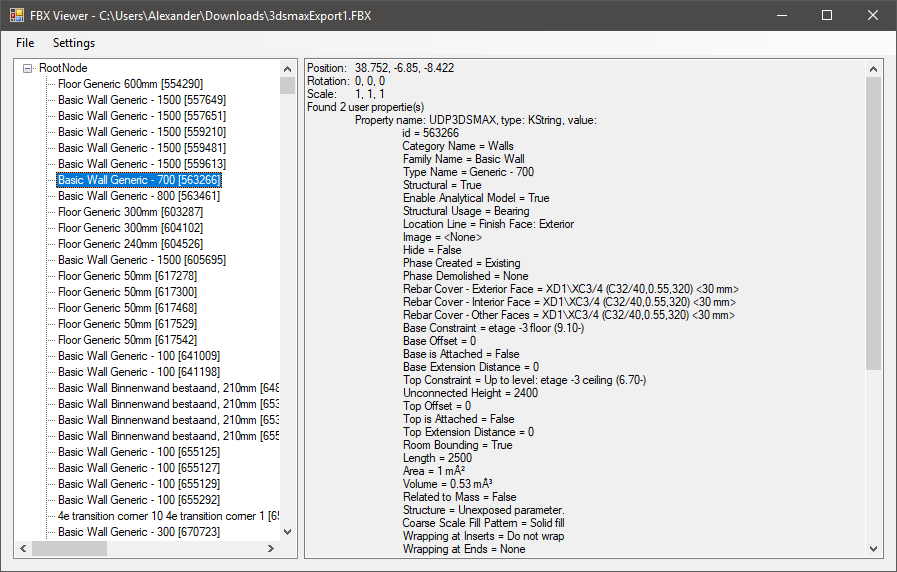
This week I came across a simple option to inspect FBX files, something I’ve always wanted to have. It’s not a native solution or does not have fancy GUI or has a 3D viewer. It’s a framework to use the FBX SDK using .NET. The sample that comes with it, does just what I need!

At Soltegro we’re working with BIM models in the form of Revit, Navisworks or AutoCAD files. Each of these pieces of software can transform these files into FBX files, however they all do it differently. And to that end I’m looking for a way to inspect the FBX files, and it’s internal tree, before importing them into Unreal Engine 4.

You can find the tool on GitHub; https://github.com/Kolky/ManagedFBX. Thanks to returnString for the first version. 

I’ve modified it slightly to support the FBX SDK 2016 v1.1 used by Unreal Engine 4.16. And made it support FbxProperties and expanded the sample to be more versatile. I might add a WPF version of the Sample and also more FBX info in the future. But for now it does what I need!

Managed FBX Sample

AnyStatus ‘support for Jenkins MultiBranch’

Two weeks ago I came across a plugin for Visual Studio; AnyStatus. It gives you the ability to keep track of all kinds of services/servers while working in Visual Studio. It lacked the ability to track Jenkins MultiBranch projects, what we use a lot at my work; Soltegro. Since the API was straightforward and freely available in GitHub, I decided to develop it myself. And as of this week it has been merged into the Plugins dll; Pull Request 4.

The code could use some extra work, when the API introduces a better way for managing and creating sub-items. There is still discussions going on about this; Issue 2.

Allium ‘Google Analytics v3 Tracker in C#’

Lately I’ve been looking into NuGet packages and libraries on GitHub to add Google Analytics tracking in .NET WPF applications. There are quite some that offer ways to do this, see the links at the end. They all however have their limitations; either they lack support for WPF (and it’s hard to add) or they use older versions of the Google Measurements Protocol. It’s a shame that Google hasn’t released a tracking library itself! Their Analytics Reporting API is quite good!

So I’ve decided to create my own solution, Allium. As of right now, it is still WIP and untested.

Here is however an extremely simple usage example, which will not change much during development;


using (var session = new AnalyticsSession("UA-XXXXX-YY"))
{
  session.TrackScreenViewHit("ThisWindow");
}

Inspired by;